
Getting Started
Members Chat
Stocks Platform
Options Platform
News
Courses
Mobile App
Troubleshooting
Troubleshoot common issues with BlackBoxStocks and our platform.
Quick Start: Try This First
Before diving into specific sections, try these steps. They resolve the majority of issues.
- Use Google Chrome as your browser. BlackBox is optimized for Chrome.
- Hard refresh your browser: Press Ctrl + F5 (Windows) or Cmd + Shift + R (Mac).
- Clear your BlackBox cache: Click your profile image (top right) > Settings > Clear Cache. Then log back in.
- Try Incognito/Private mode: If BlackBox works in Incognito, a browser extension is causing the issue. Disable extensions one by one to find the culprit.
- Update your browser: Go to your browser menu > Help > About to check for updates. You can verify the latest version at browser-update.org/browsers.html
Options Flow Issues (Most Common)
This is the #1 issue we see in Support. If you’re not seeing the Options Flow you expect, it’s almost always a filter setting
No Options Flow Appearing
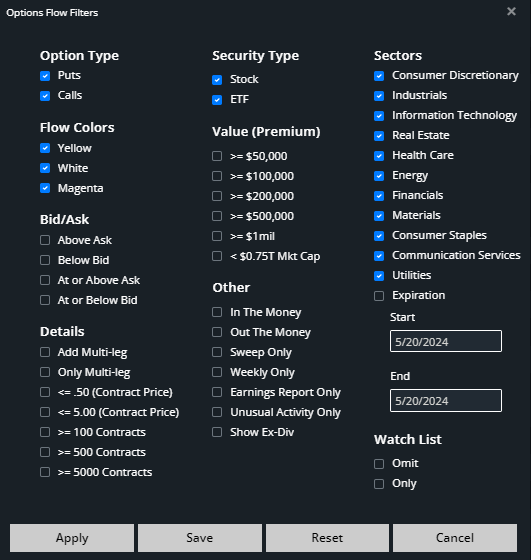
Check your Option Flow Filters first. Reset them to minimal settings to confirm Flow is working:
- Remove all filters except the basics
- Make sure you haven’t accidentally set filters too narrow (e.g., multiple filters in the same category)
- If flow appears with minimal filters, add your preferred filters back one at a time to find the one causing the issue
Filter Exclusions Tool
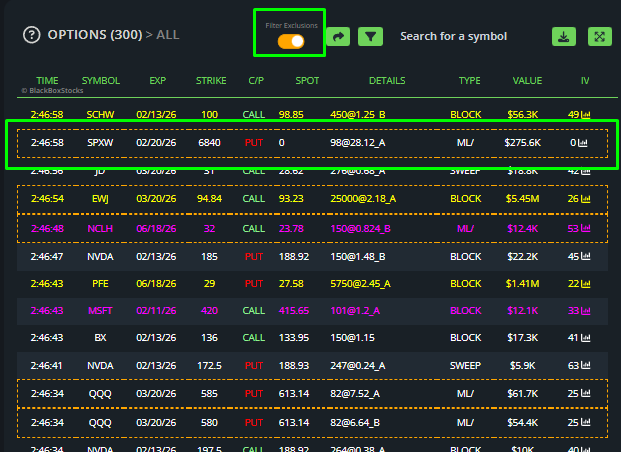
Use the Filter Exclusions toggle to identify which filters are hiding flow from your view.
- Turn on the Filter Exclusions
- Options Flow that is excluded by your filters will appear with an orange border.
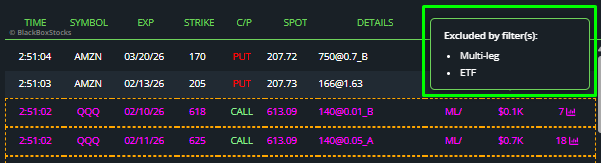
- Hover over any orange-bordered flow to see which specific filter(s) is excluding it.
ETF Flow Not Showing (SPY, QQQ, etc.)
ETF flow is filtered out by default. Select ETF in your Option Flow Filters to display it.
No Flow for a Specific Stock
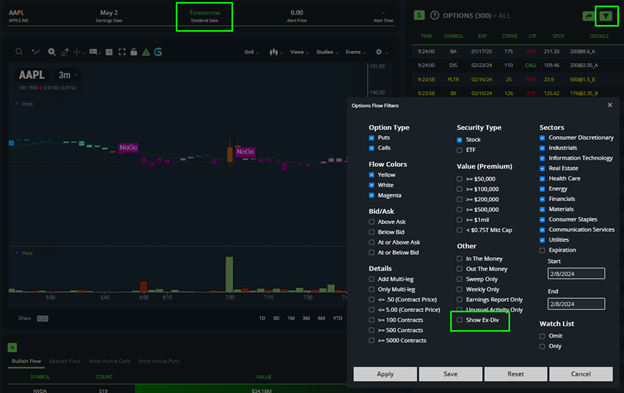
BlackBox hides options flow the day before a stock goes ex-dividend because the volume can be misleading as traders position around the dividend. Check the banner above the chart to see if the stock is going ex-dividend the next day.
To see ex-dividend flow anyway, enable it in your Option Flow Filters under the ex-dividend toggle.
3. Browser and Cache Issues
Clearing BlackBox Cookies
Chrome
- Click the lock/tune icon in the address bar (left of the URL).
- Select Cookies and site data
- Select Manage on-device site data. Then click the trash cans for all cookies and delete them.
- Log out of BlackBox, then log back in.
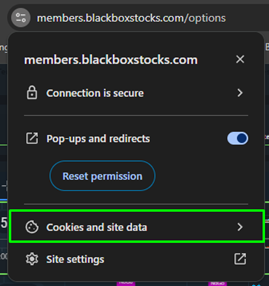
Step 1
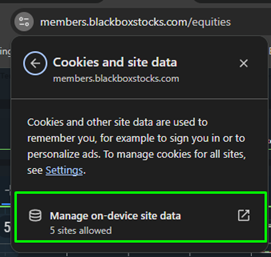
Step2
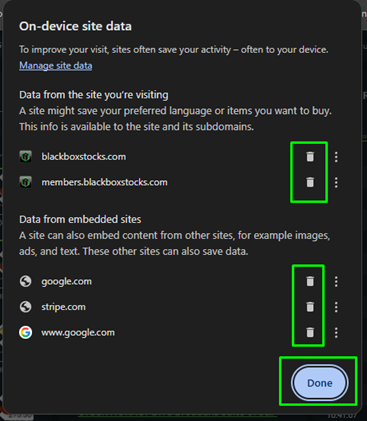
Step 3
Edge
- Click the lock icon in the address bar.
- Select “Cookies” from the site settings.
- Click the trash can icon next to each cookie to delete them, then click Done.
- Log out of BlackBox, then log back in.
Safari, Firefox, Brave
Follow a similar process in your browser’s site settings to delete cookies for members.blackboxstocks.com, then log out and back in.
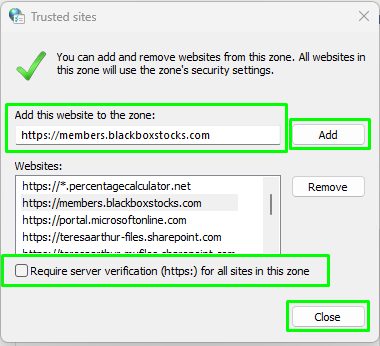
Adding BlackBox as a Trusted Site (Windows)
- Type “Internet Options” into the Windows search box (next to the Start menu).
- In the Internet Properties window, click the Security tab.
- Click the green Trusted Sites checkmark, then click Sites.
- Type https://members.blackboxstocks.com in the “Add this website to the zone” box.
- Click Add, uncheck “Require server verification,” and click Close.
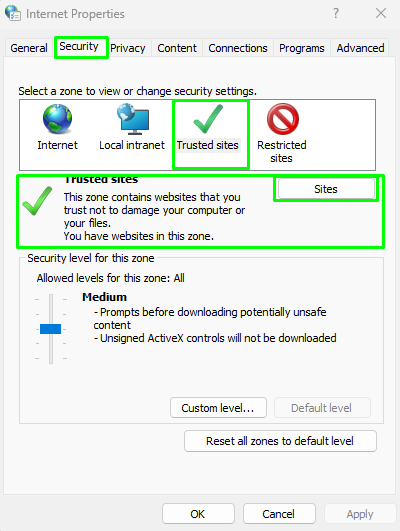
4. Pop-up Blocker Settings
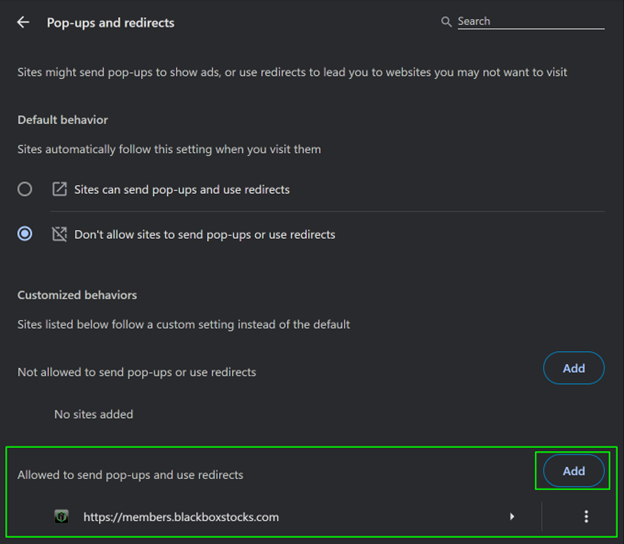
BlackBox requires pop-ups for some features, including the Discord linking process. If you use a pop-up blocker, add https://members.blackboxstocks.com as an allowed site.
Chrome
Settings > Privacy and Security > Site Settings > Pop-ups and Redirects > Add https://members.blackboxstocks.com under “Allowed.”
Edge
Settings > Cookies and Site Permissions > Pop-ups and Redirects > Add https://members.blackboxstocks.com under “Allow.”
Safari
Safari menu > Preferences > Websites tab > Pop-up Windows > Find the BlackBox site and set to “Allow.”
Firefox
Settings > Privacy & Security > Permissions > Pop-ups > Exceptions > Add https://members.blackboxstocks.com and click Allow, then Save Changes.
5. VPN and Network Issues
VPN Blocking BlackBox
VPNs (commonly used for work environments) can block data from BlackBox, causing the platform to not load or appear frozen.
- Add https://members.blackboxstocks.com as an allowed site on your VPN.
- If you don’t manage your VPN settings, contact your network administrator to whitelist BlackBoxStocks.
- As a quick test, disconnect from the VPN temporarily to confirm it’s the cause.
Slow or Unstable Internet
- A weak or unstable internet connection can make BlackBox appear frozen when it’s actually waiting for data.
- Test your connection speed at a site like net. BlackBox works best with a stable broadband connection.
- If you’re on Wi-Fi, try moving closer to your router or switching to a wired ethernet connection.
6. Display and Zoom Issues
Cramped Text or Missing Data
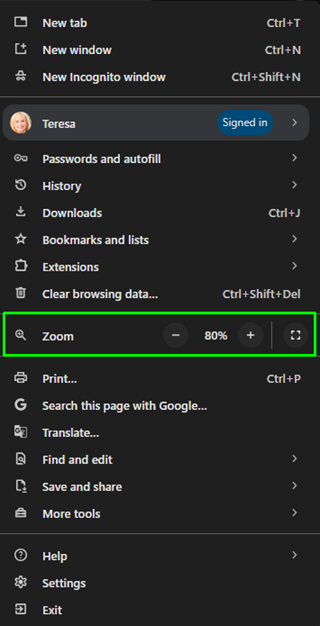
If text looks cramped or data appears cut off, your browser zoom level is likely too high. Adjust it to 80% or 90%.
- Chrome: Click the three-dot menu > Zoom > Use the “-” button to lower to 80-90%, then refresh.
- Edge: Three-dot menu > Settings > Appearance > Customize font size > Adjust the zoom.
- Safari: Safari menu > Preferences > Advanced > Page Zoom > Adjust the slider.
- Firefox: Click the menu button > Use the +/- buttons to adjust zoom. Click the number to reset to 100%.
Welcome Video Won’t Dismiss
Look for a scroll bar on the right side of the video. If you don’t see it, hover your mouse over the right edge of the screen. Scroll to the bottom of the video and check the box to dismiss it.
If the scroll bar still isn’t visible, lower your browser zoom level (see above), then try again.
7. Password Reset
Use this link to reset your password: members.blackboxstocks.com/forgotPassword
Important Notes
- Only submit one reset request. Submitting multiple requests can cause conflicts and none of the reset links will work.
- Check your spam/junk folder if you don’t see the email within a few minutes. The email comes from BlackBoxStocks.
- Double-check your email address when requesting the reset. A typo means you’ll never receive it.
- Password requirements: Must include uppercase, lowercase, a number, and a symbol.
8. Discord Setup
BlackBox live Options Trading Rooms are hosted on Discord. The streaming audio you hear in BlackBox Start or Roadhouse on the website comes directly from Discord.
Getting Set Up
- Create a Discord account at Discord.com if you don’t already have one. Do this before proceeding.
- Disable your pop-up blocker for BlackBox, or the linking process will fail silently. (See Section 4 for instructions.)
- Use the “Link to Discord” feature on the BlackBox desktop site. Detailed instructions are at: blackboxstocks.com/en/getting-started/join-blackboxstocks-community
- Wait for the “Successful” message. Once you see it, you should have access to all Discord rooms. NOTE: It can take a few minutes for the link to populate through the system so give it a few minutes once you receive ‘Successful’ message for the rooms to appear.
Linked Successfully but Can’t See All Rooms?
If you completed the link process and received the “Successful” message but rooms are missing, join the server directly using this invite link: discord.gg/dsVAGfmgZh
9. Mobile App Issues
Download Links
- iPhone/iPad/iOS: Search “BlackBoxStocks” in the App Store, or visit apple.com/us/app/blackboxstocksmobile/id1529902887
- Android: Search “BlackBoxStocks” in Google Play, or visit google.com/store/apps/details?id=com.blackboxstocks.mobile
App Data Not Loading
- Go to your phone’s Settings and uninstall the BlackBoxStocks app.
- Reinstall the app from the App Store or Google Play using the links above.
- Log back in and check if data loads correctly.
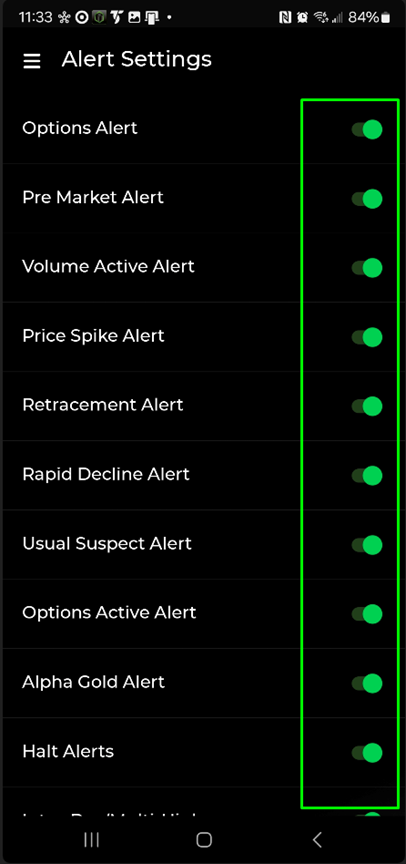
Mobile Alerts Not Working
- Log into the BlackBox mobile app.
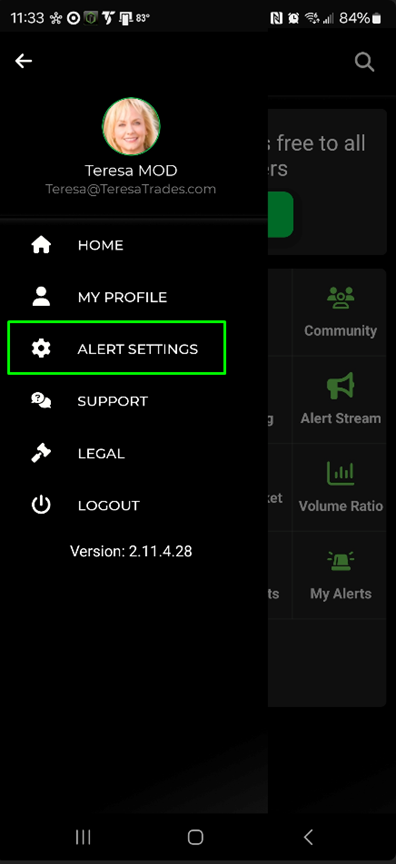
- Go to Alert Settings (tap the three lines at the top of the screen).
- Toggle OFF all alert notifications.
- Log out of the app, then log back in.
- Go back to Alert Settings and toggle ON the notifications you want.
- Log out and back in one more time to complete the reset.
10. System Requirements and Recommendations
BlackBox is entirely web-based, so there’s no software to install on desktop. However, your system needs to be able to handle the data load.
Recommended Browser
Google Chrome (latest version). Edge, Firefox, Safari, and Brave also work but Chrome is recommended for the best experience.
System Performance
If you’re running multiple resource-intensive applications (multiple browser windows, broker platforms, charting software), your system may run low on resources and BlackBox can appear frozen.
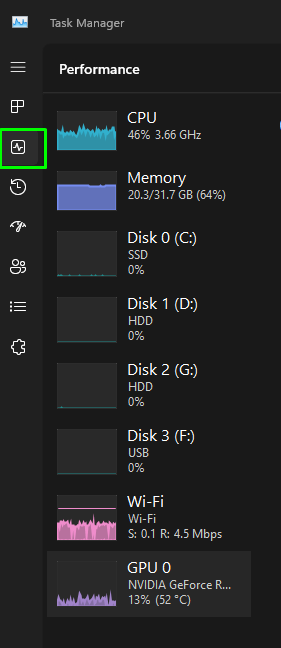
To check your system resources on Windows: Type “Task Manager” in the Windows search box > Click the Performance tab to see CPU, memory, and disk usage.
- If CPU or Memory is consistently above 90%, close unnecessary applications.
- Older systems and laptops without dedicated graphics cards are more prone to resource exhaustion.
- Consider closing other browser tabs when running BlackBox, as each tab consumes memory.
11. Contact Support
If none of the steps above resolved your issue, we’re here to help.
PAGE CONTENTS
DOWNLOAD APPS