
Getting Started
Members Chat
Stocks Platform
Options Platform
News
Courses
Mobile App
Options Flow V2
Note: The Classic Options Flow view is still available for members who prefer the original interface. To switch back at any time, go to your profile image, click Settings, then under Application Settings change Options Flow Layout back to Classic Flow.
Video Walkthrough
Watch the Options Flow V2 Walkthrough
How to Switch to Options Flow V2
Options Flow V2 is available on the desktop platform. To enable it:
- Click your profile image in the top right corner of the desktop platform.
- Click Settings.
- Under Application Settings, locate Options Flow Layout.
- In the dropdown, select Advanced Flow.
Once selected, your Options Flow view will default to Options Flow V2.
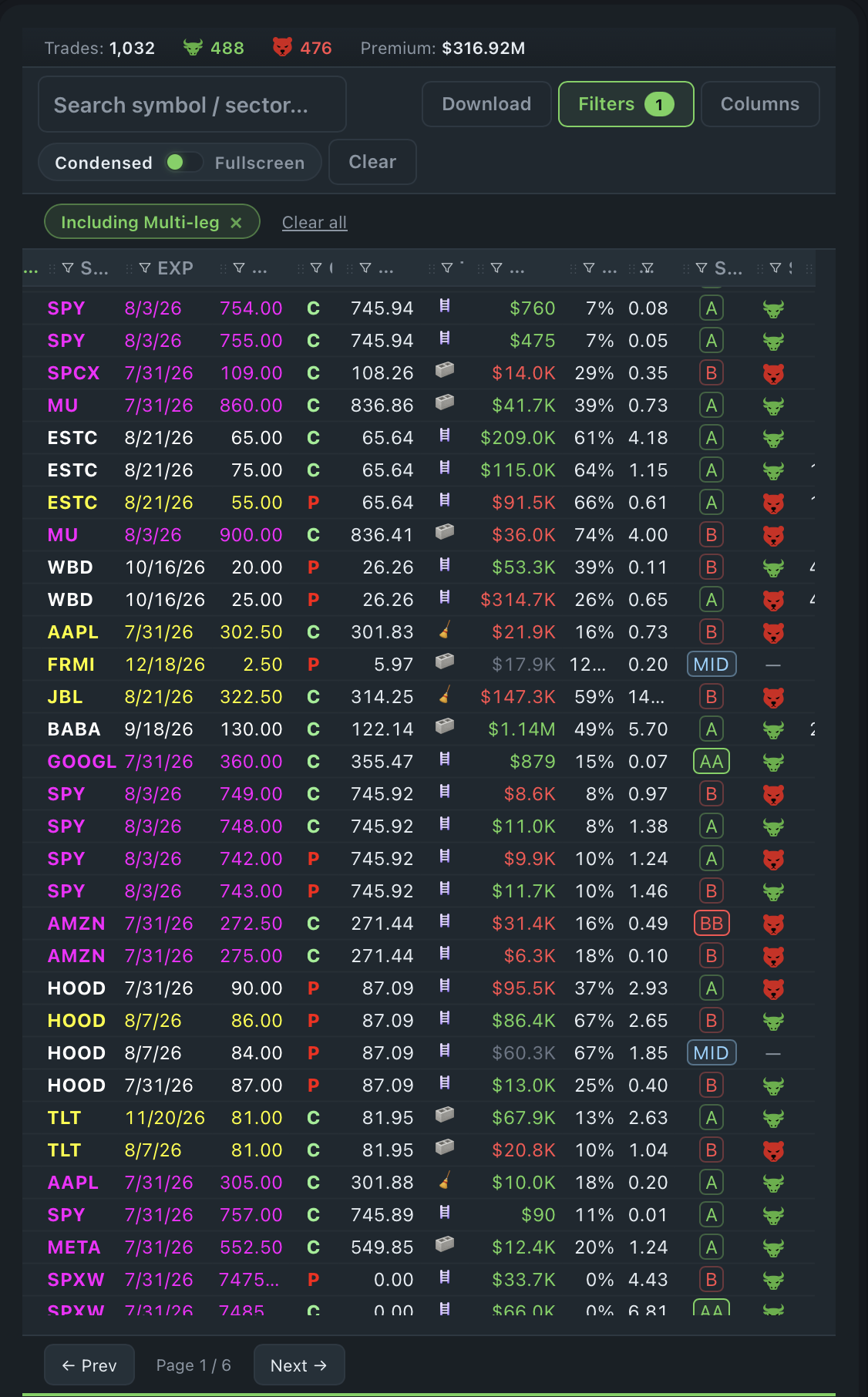
Condensed View
Columns available in Condensed View: Time, Symbol, Expiration, Strike, Call/Put, Spot, Type, Value, IV, Price, Side, and Volume.
Toggling between Condensed and Fullscreen: You can switch between Condensed View and Fullscreen View at any time using the toggle at the top of the Options Flow tab.
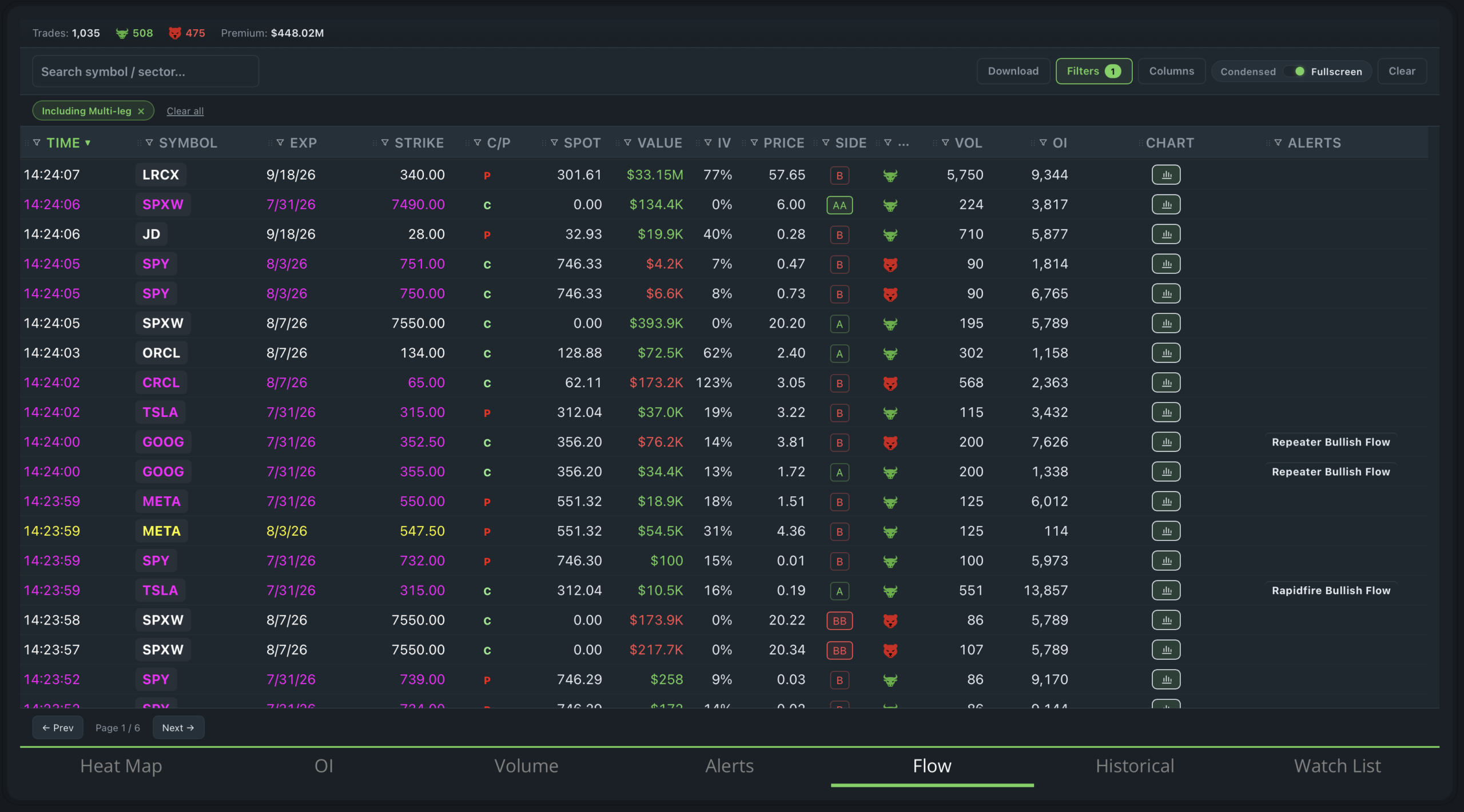
Fullscreen View
Columns available in Fullscreen View: Time, Symbol, Expiration, Strike, Call/Put, Spot, Type, Value, IV, Price, Volume, OI (Open Interest), and Alerts.
All column controls available in Condensed View (sort, filter, resize, move, and Columns selector) are also available in Fullscreen View.
How to use the column controls
- Sort: Click any column header to sort by that column.
- Filter: Click the funnel icon on any column header to filter by that column.
- Resize: Hover between two column headers to reveal the resize bar, then drag to adjust the width.
- Move: Drag any column header left or right to reposition it.
- Columns button: Click the Columns button at the top of the Options Flow to open a dropdown of all available columns. Select only the columns you want to display.
Trade Details Panel
- Created Date and Time
- Trade Type (Block or Sweep)
- Side (Buy or Sell)
- Spot Price
- Spot/Strike Delta Percentage
- Price
- Volume
- Open Interest (OI)
- Vol/OI Ratio
- Premium
- Sentiment (Bullish or Bearish)
- Implied Volatility (IV)
- Days to Expiration (DTE)
- Earnings Date
- Unusual Options Activity (UOA) Flag
- Weekly Indicator
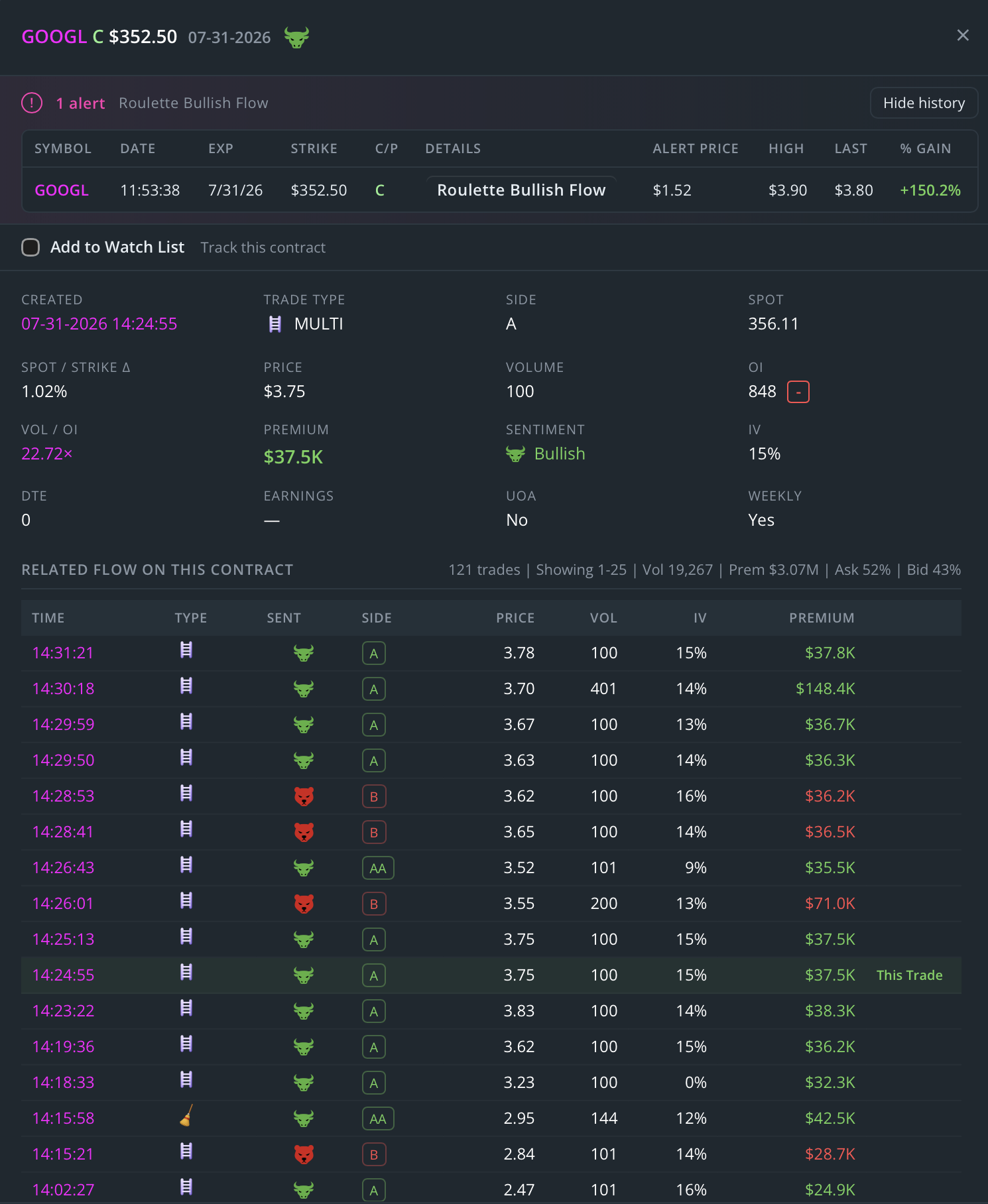
Related Flow Section: Below the trade details, the panel displays all trades for that contract for the current trading day. Each entry shows the Time, Type, Sent, Side, Price, Volume, IV, and Premium. A summary line at the top of the Related Flow section shows the total trade count, total volume, total premium, and the volume-weighted Ask and Bid percentages. Your current trade is highlighted in the list so you always know exactly where you are in the Options Flow history.
Historical Volume and Open Interest: At the bottom of the Trade Details Panel, click the Open Historical Vol / OI button to view the full historical volume and open interest chart for that contract.
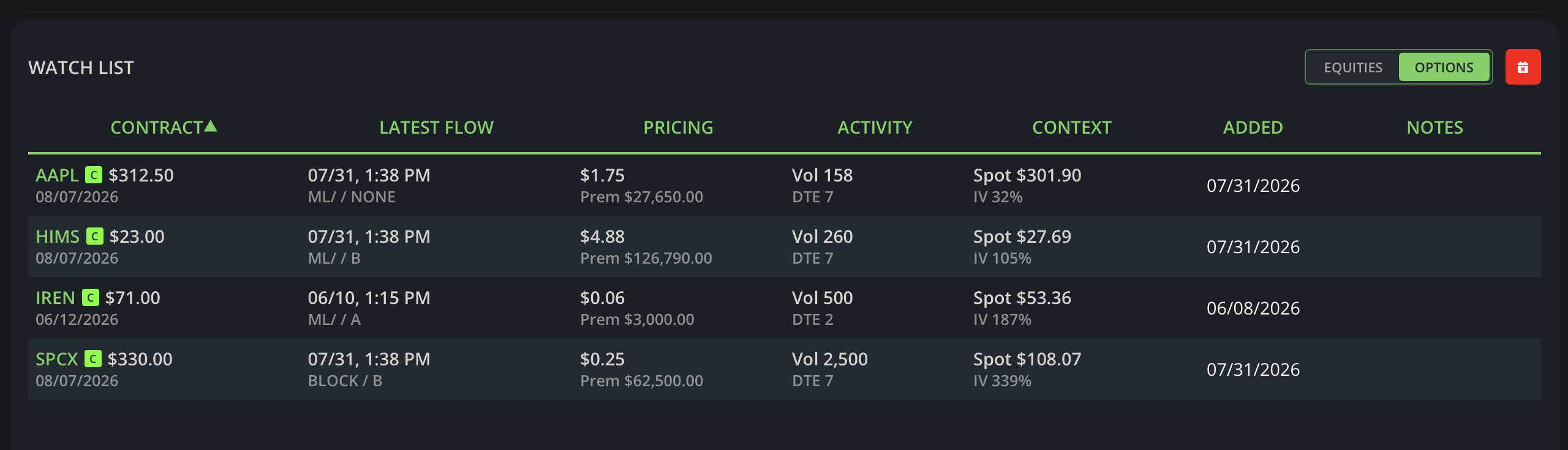
Options Watch List
- Click on any Options Flow entry to open the Trade Details Panel.
- Check the Add to Watch List box at the top of the panel.
Filter Presets
Filter Presets let you build and save custom filter configurations for different market conditions, so you can switch between setups instantly without rebuilding your filters each session.
To create a Filter Preset:
- Click the Filters button at the top of the Options Flow.
- Set your filters as desired using any combination of option type, flow color, bid/ask, security type, contract price, premium, volume, multi-leg, moneyness, flags, watchlist, expiration, and sector filters.
- Click Save as Preset in the bottom right corner of the Filters panel.
- Name your preset and save it.
Your saved presets appear at the top of the Filters panel for quick access. You can create as many presets as you need. To start fresh, click Reset All at the bottom left of the Filters panel.